Create and send a case
You create a new case by clicking New in the sidebar and selecting the desired case type.
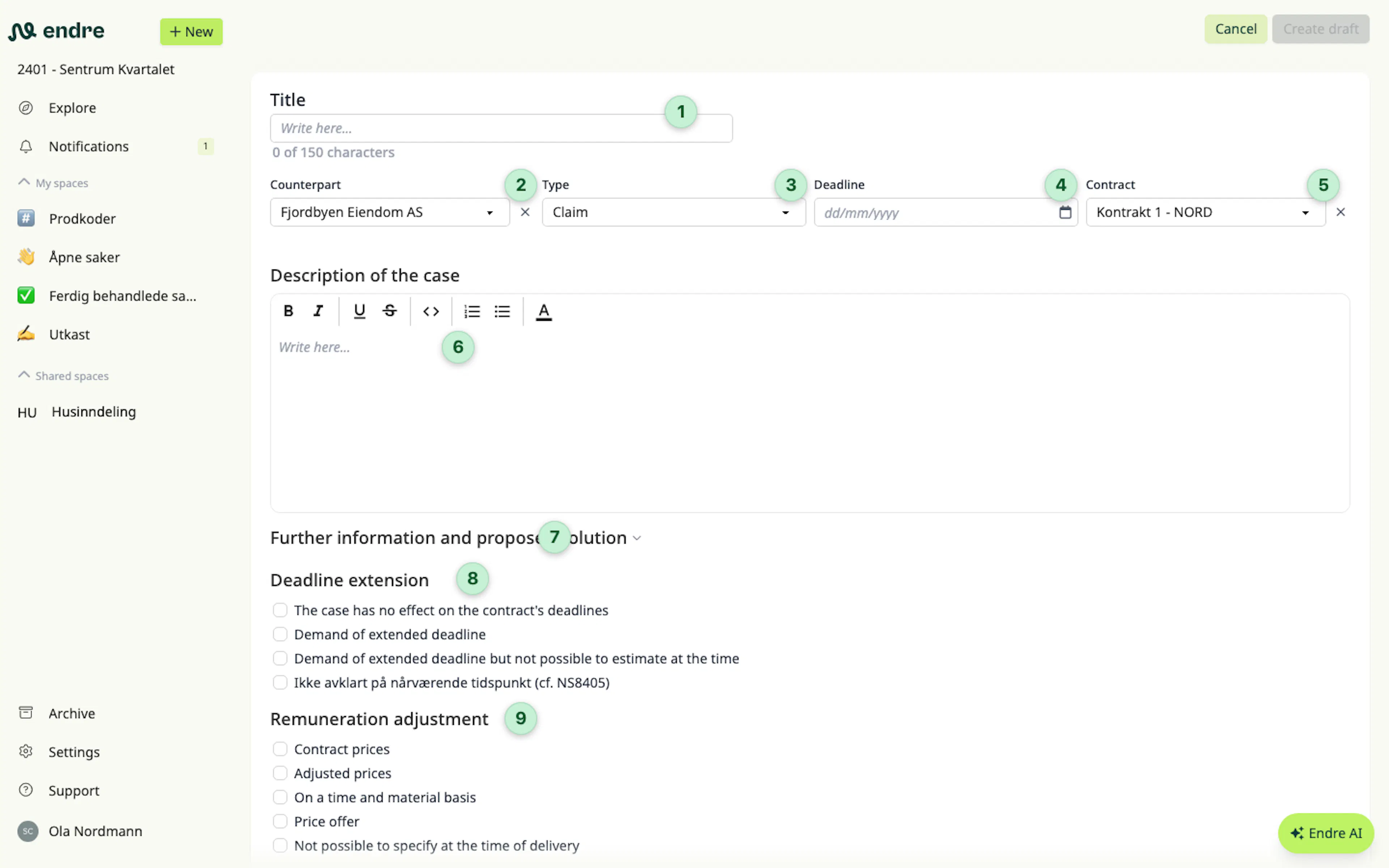
In a new case, you must fill in the title 1 and the recipient 2. If you are an owner or a subcontractor who only sends cases to the contractor, the recipient field will be filled in automatically.
If you wish, you can also change the case type 3 and add a response deadline (not legally binding) 4.
If there are multiple contracts between your company and the counterparty, you can indicate which contract the case relates to here 5.
Then you can describe the case in more detail in the description 6. You can also paste images here. Want to separate the challenge from your proposed solution? Use the field here 7.
If you want to request a time extension, you can specify how many working days you are claiming 8. You can also notify that you are entitled to a time extension without specifying the number of days immediately.
For remuneration adjustment 9 you can choose between: contract prices, adjusted prices, time and material, your own price offer, or any other project adjustments.
In cases like claims and change orders, you can add financial consequences at line‑item level by clicking New line 10. You can also import a spreadsheet, rates from the contract, or items from related cases.
On each line you can add a description, quantity, unit and unit price. The amount is calculated automatically 11. As you add more lines, the total amount for the entire case updates 12.
If you add markups in the case, these are hidden by default and baked into the total amount seen by the counterparty. If you want to show the markup, you can enable this here 13.
You can add attachments in various file formats by clicking Choose files at the bottom of the page 14.
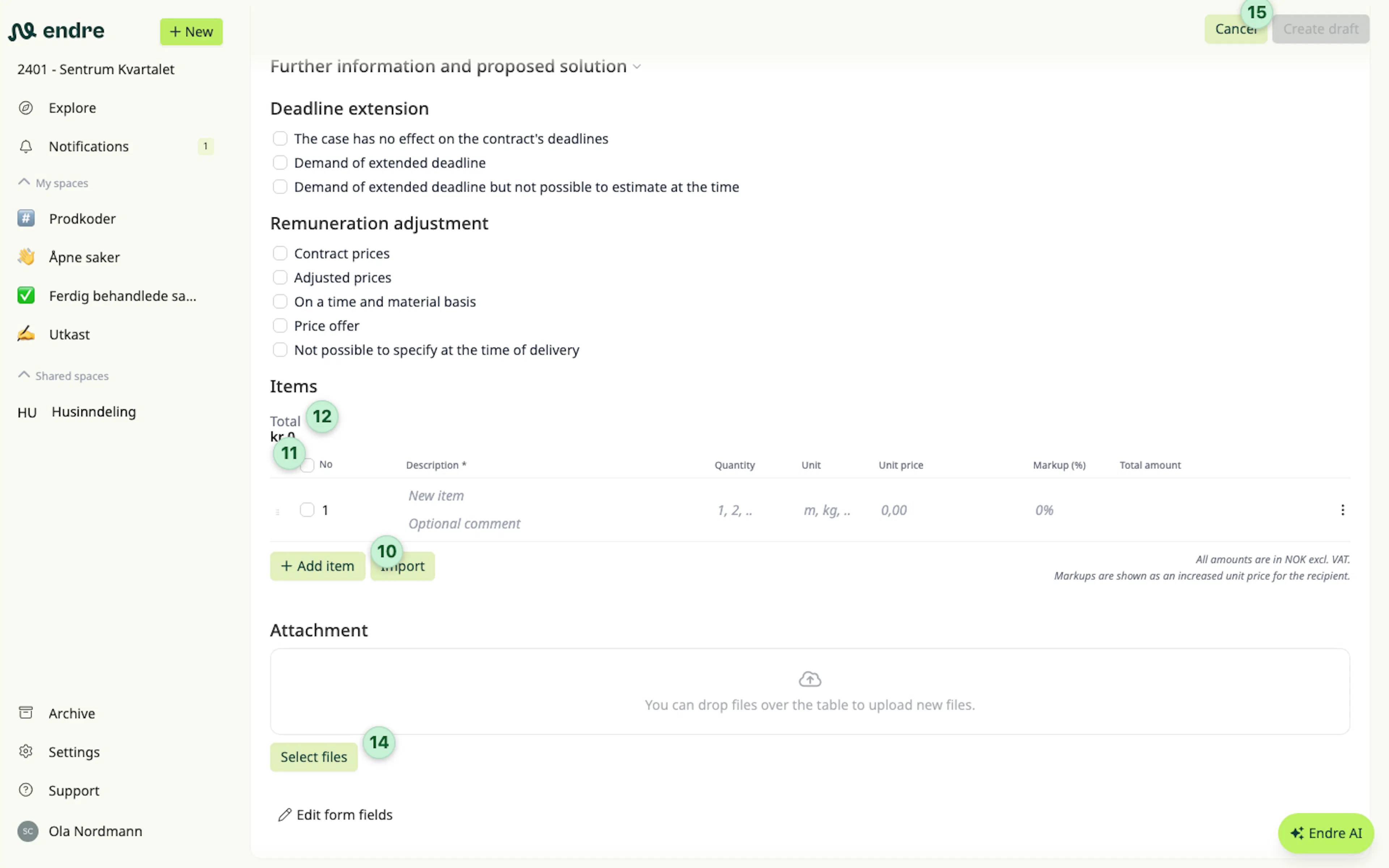
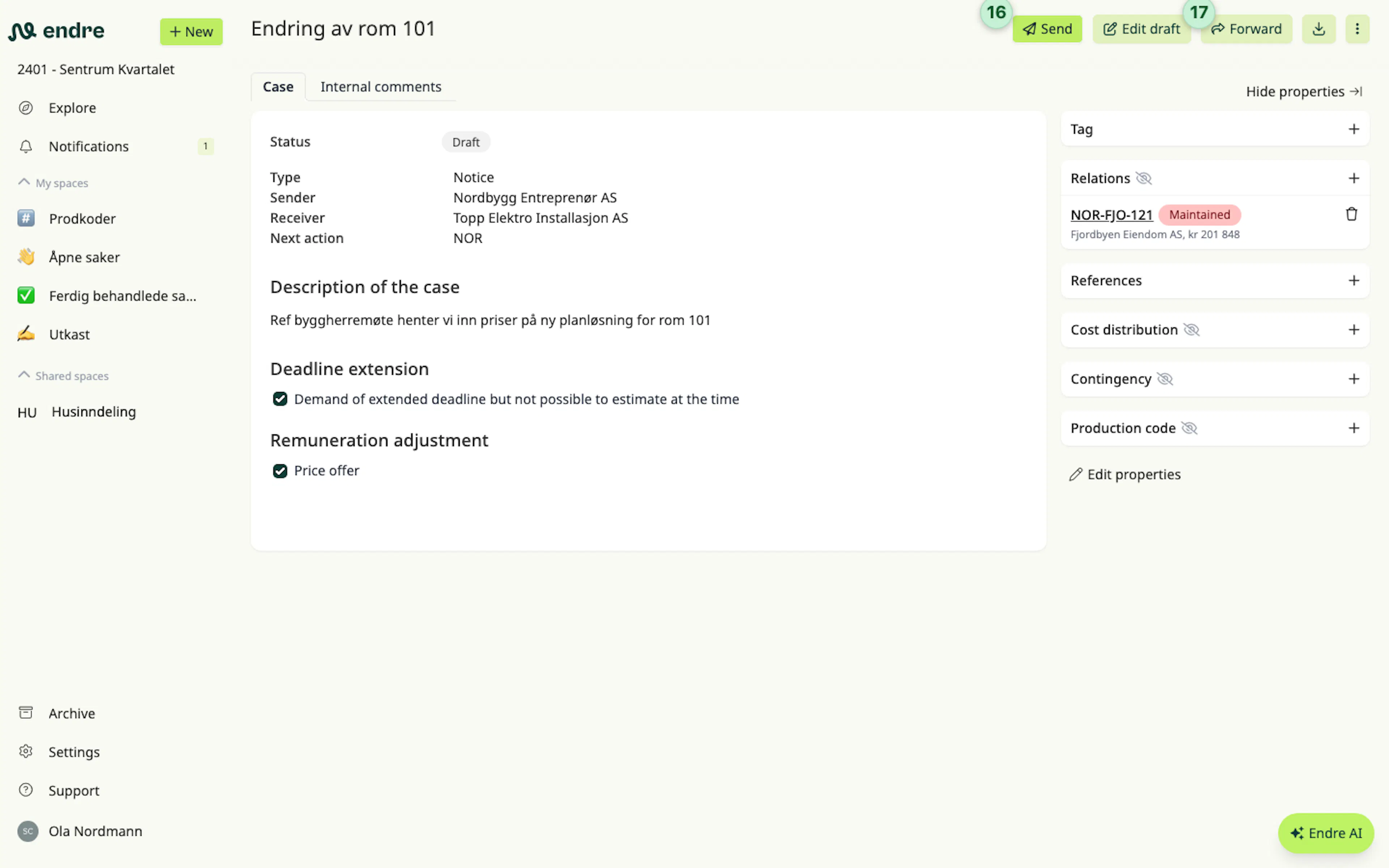
When you have filled in all required details, click Create 15. The case is then saved as a draft and is not visible to the counterparty.
When you are ready to send the case to the counterparty, click Send 16. The counterparty then receives the case, and it will appear on their Explore page. Users at the counterparty also receive a system notification and or an email, depending on their notification settings.
Before sending, you and your colleagues can edit the draft as many times as you want 17. After the case is sent, it can still be updated as a new version of the case.