Explore cases
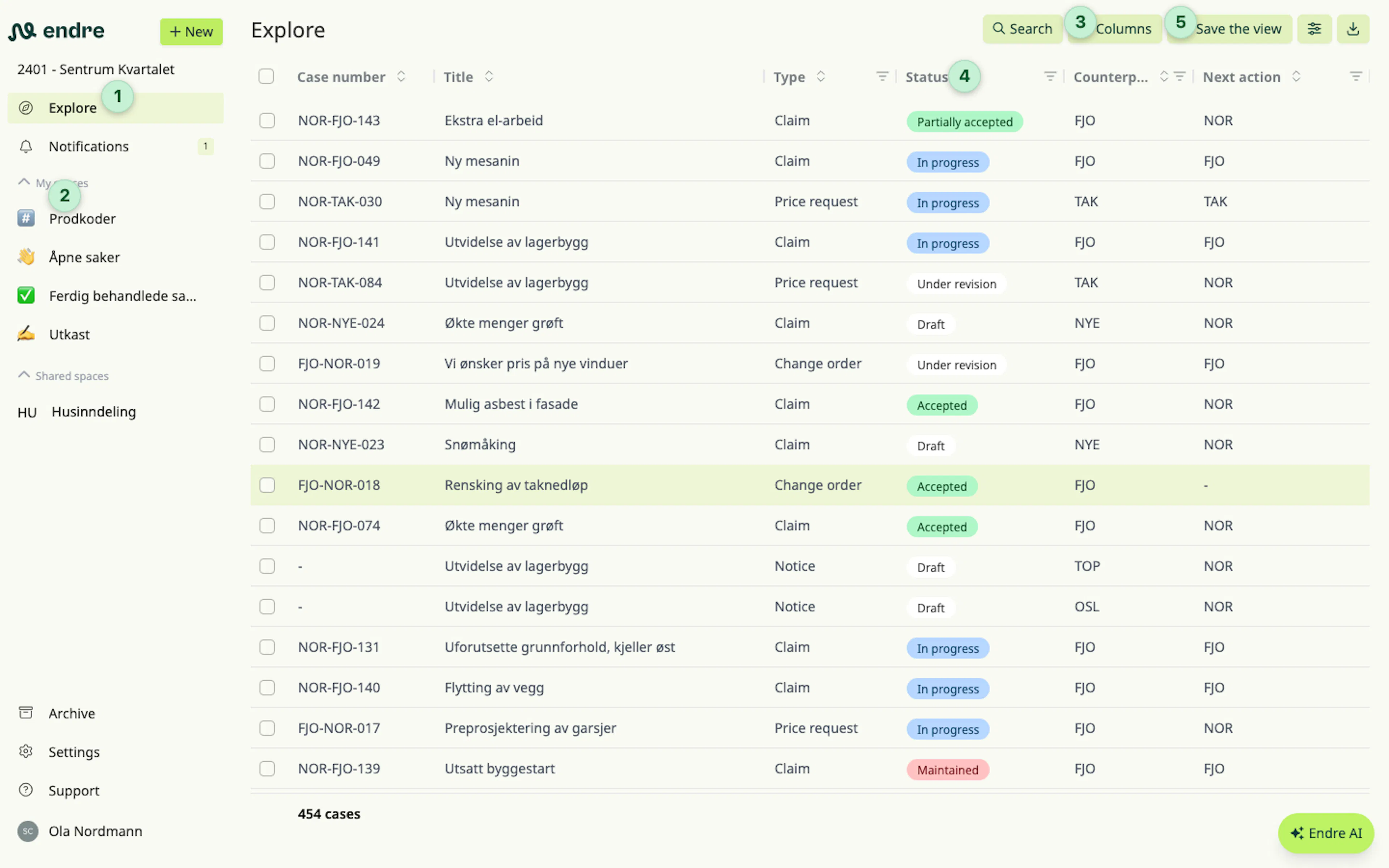
On the Explore page 1, and within each space in the side menu 2, you will find a case list organised into columns.
The columns can include case number, title, status, counterpart, total costs, approved costs, last activity, and many more.
You can customise the view by adding or removing columns using the column selector found at the top right of the list 3. You can move and resize columns to tailor the case list to your needs.
You can also filter each column to show only specific parameters and easily focus on what matters most 4.
👉 Good to know: You can save the view you have created as a space to easily return to it later 5.
Was this page helpful?