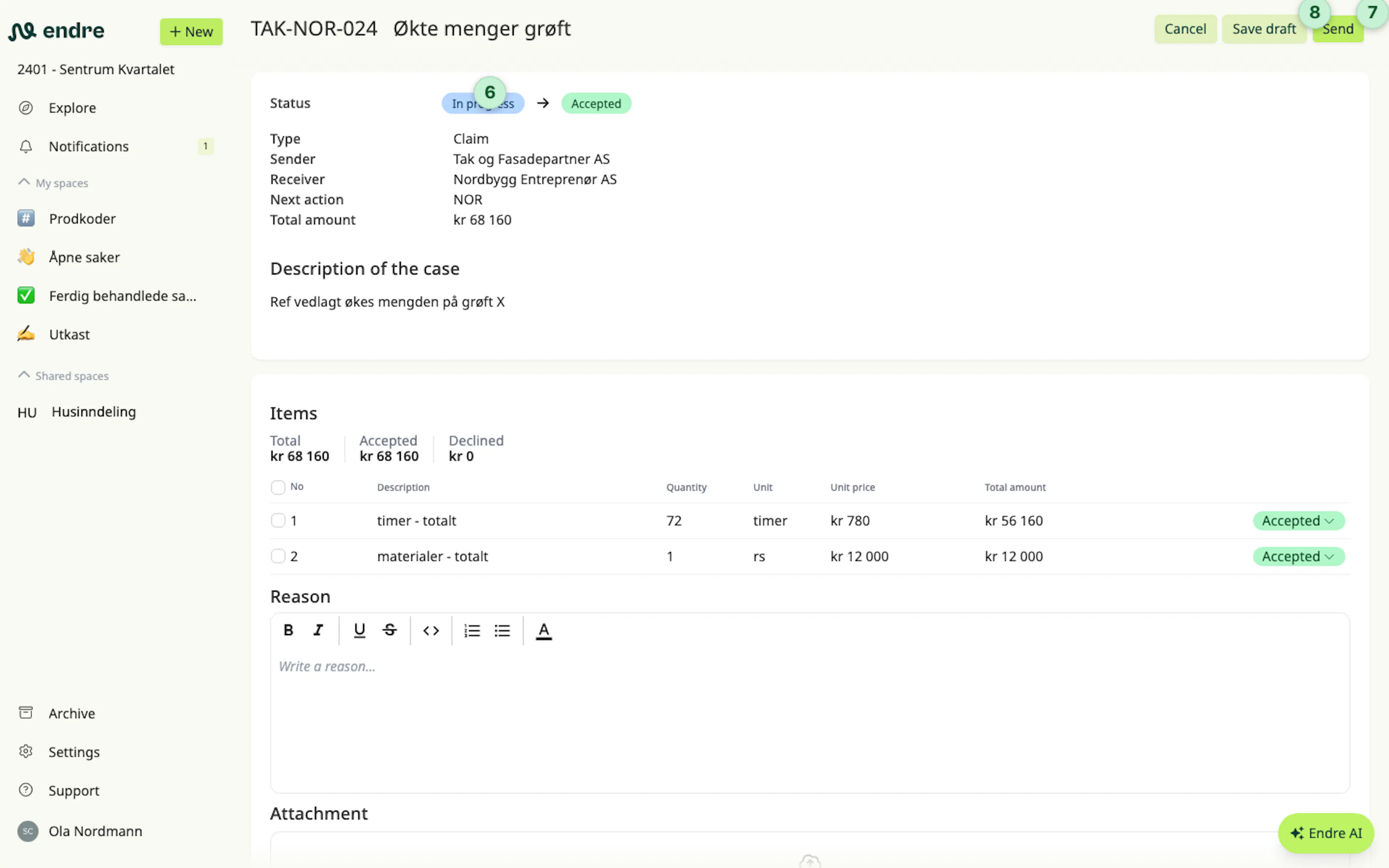
Reply to a case
Cases from the counterparty that are waiting for your response are shown on the Explore page. They are marked in bold and with the status new. If you have email or system notifications enabled, you will be notified when your company receives a new case.
When you or a colleague opens a new case for the first time, the status automatically changes to in progress.
To reply to a case, click Reply 1.
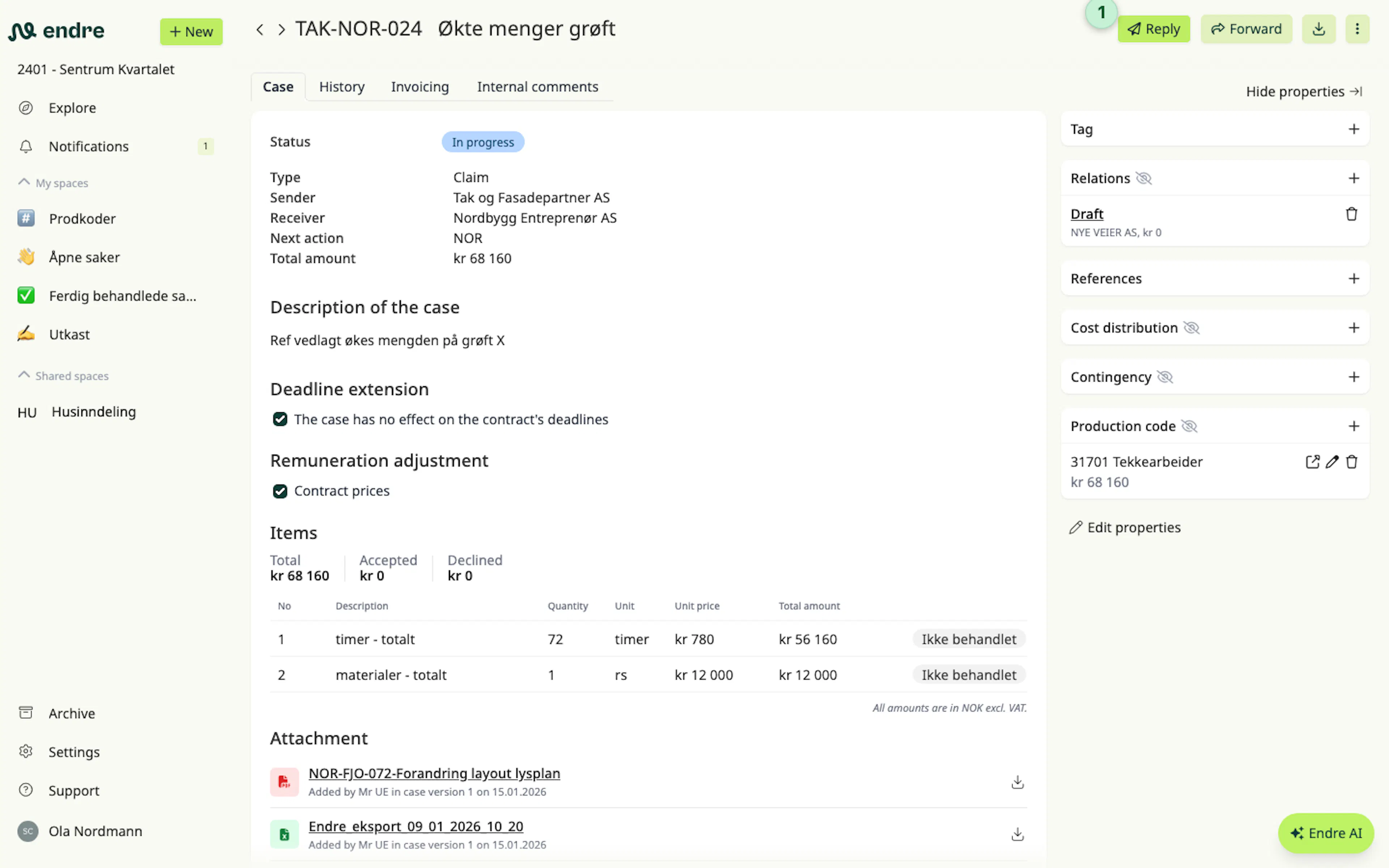
For time extensions and simple line items, you can reply by approving, rejecting, or marking that you are waiting on a third party 2. With the checkboxes you can choose different statuses for individual line items before confirming the reply 3.
If rejecting or waiting on a third party, you must provide a justification 4. For approvals, justification is optional.
You can also upload attachments 5 in various file formats as part of the reply. These appear in the timeline at the bottom of the case.
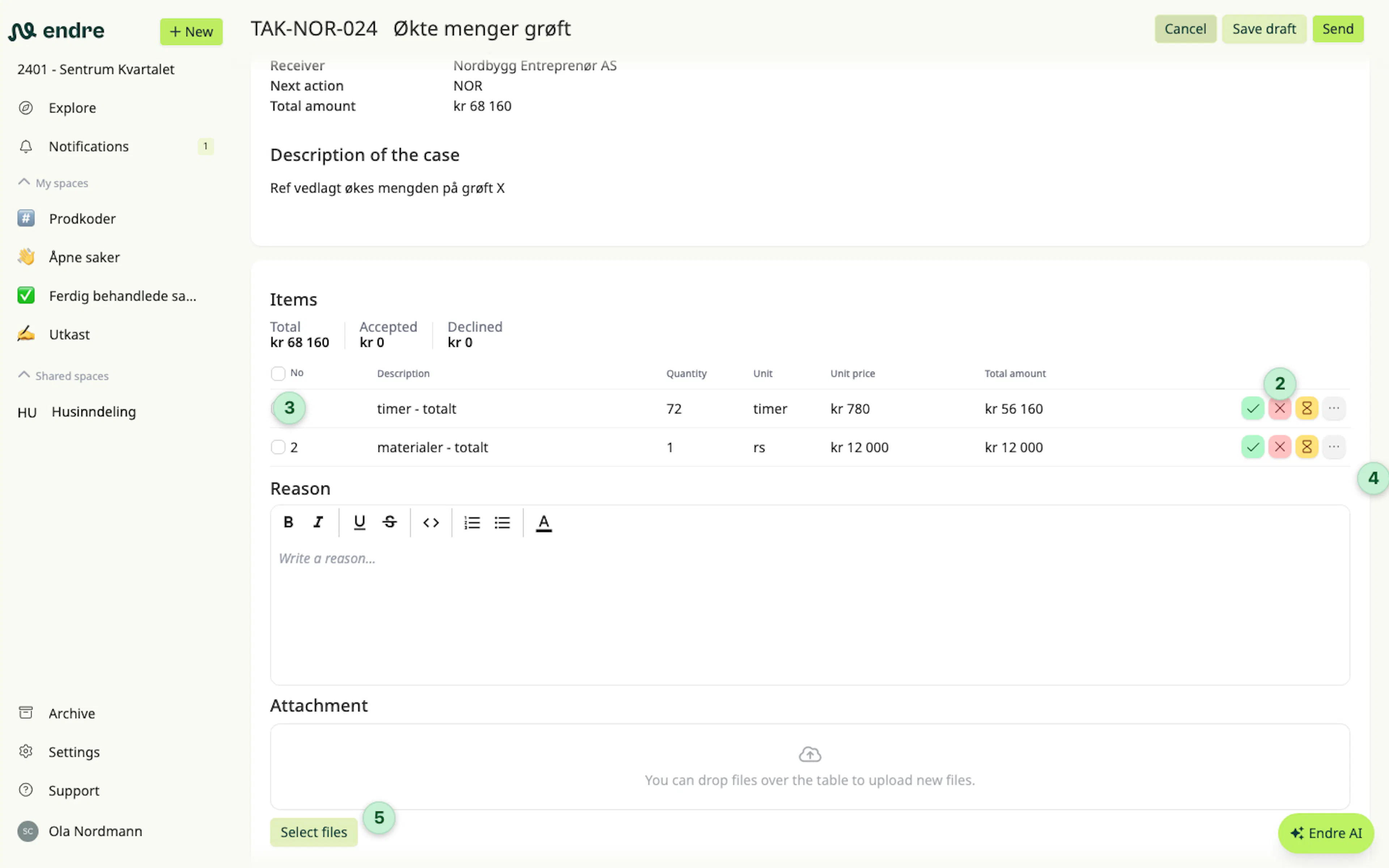
A preview 6 shows what the case status will change to with your reply:
- If everything in the case is approved, the case will be approved.
- If everything in the case is rejected, the case will be rejected.
- If some parts of the case (time extension and or one or more line items) are rejected while others are approved, the case will be partially approved.
- If any part of the case is marked as waiting on a third party, the case will be marked as waiting on a third party.
You send your reply to the counterparty by clicking Send 7.
Before sending the reply, you and your colleagues can save 8 and edit the draft reply as many times as you want.